
Introduction
The VPN Safe Windows app is the easiest way to connect on a PC. You log in once, pick a server, and tap the power button. WireGuard is the default protocol.
Download: vpnsafe.net/downloads/windows.exe. You need a VPN Safe username and password from the Client Area.
Install and log in
- Download and open vpnsafe.net/downloads/windows.exe.
- Windows shows a blue SmartScreen window titled Windows protected your PC. It says Microsoft Defender SmartScreen prevented an unrecognized app from starting, and the publisher is unknown. That is normal for this installer because it is not from the Microsoft Store.
- Click More info. A Run anyway button appears under the app name. Click Run anyway. Do not click Don't run.
- Finish the installer, then open VPN Safe.
- Sign in with your VPN username and password (for example
acc943407).
If the blue window does not offer More info, close it, right-click windows.exe in Downloads, and choose Open or Run as administrator. SmartScreen then shows More info and Run anyway.
Connect
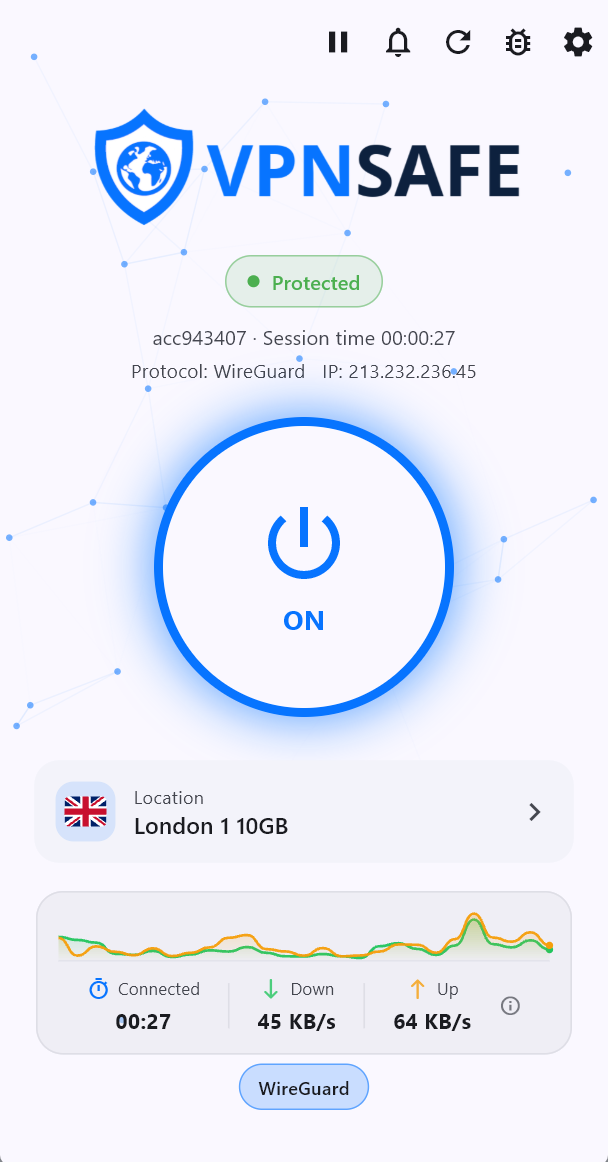
- Tap the large power button so it shows ON.
- Wait for the green Protected badge.
- Confirm the home screen shows the protocol (usually WireGuard), your VPN IP, session time, and the location you are using.
The graph under the power button is live download and upload. The location card (for example London 13) is the server you are on. Tap it to change server.
Home screen icons
- Bell — announcements.
- Refresh — reload server data.
- Bug — diagnostics.
- Gear — Settings (protocol, DNS, kill switch, and the rest).
When you are connected, visit vpnsafe.net/whats-my-ip and check the IP matches the one on the home screen.