
Introduction
VPN Safe for Windows can use several protocols. WireGuard is the default and the right choice for most people. Switch only if a network blocks WireGuard, you need extra reliability, or you are unlocking geo-restricted catalogues.
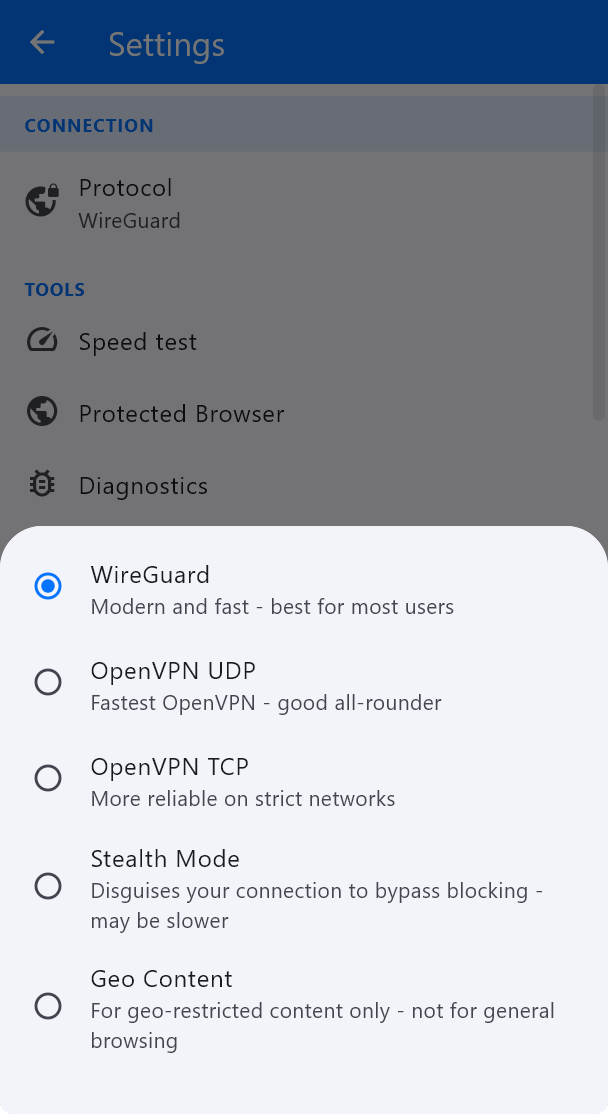
Where to change it
- Open the Windows app and tap the gear (Settings).
- Under CONNECTION, tap Protocol.
- Choose one of the options below, then go back and connect.
What each protocol is for
- WireGuard — Modern and fast. Best for most users. Use this unless something else is required.
- OpenVPN UDP — Fastest OpenVPN. A good all-rounder if WireGuard is blocked or unstable.
- OpenVPN TCP — More reliable on strict networks (hotels, offices, some mobile hotspots). Usually a bit slower than UDP.
- Stealth Mode — Disguises the connection to bypass blocking. May be slower. Use this on networks that detect and drop VPN traffic.
- Geo Content — For geo-restricted content only, not for general browsing. If your account has no Geo Content servers, the app will say so.
After you switch
Disconnect and connect again so the new protocol is used. The home screen shows the active protocol under the Protected badge, and a protocol chip (for example WireGuard) at the bottom of the window.
If a protocol will not connect, try WireGuard first, then OpenVPN UDP, then OpenVPN TCP, then Stealth Mode.