
Introduction
The Windows Settings screen has a PROTECTION section with the switches that keep traffic inside the tunnel. Open Settings with the gear icon, then scroll past Kill switch and App mode.
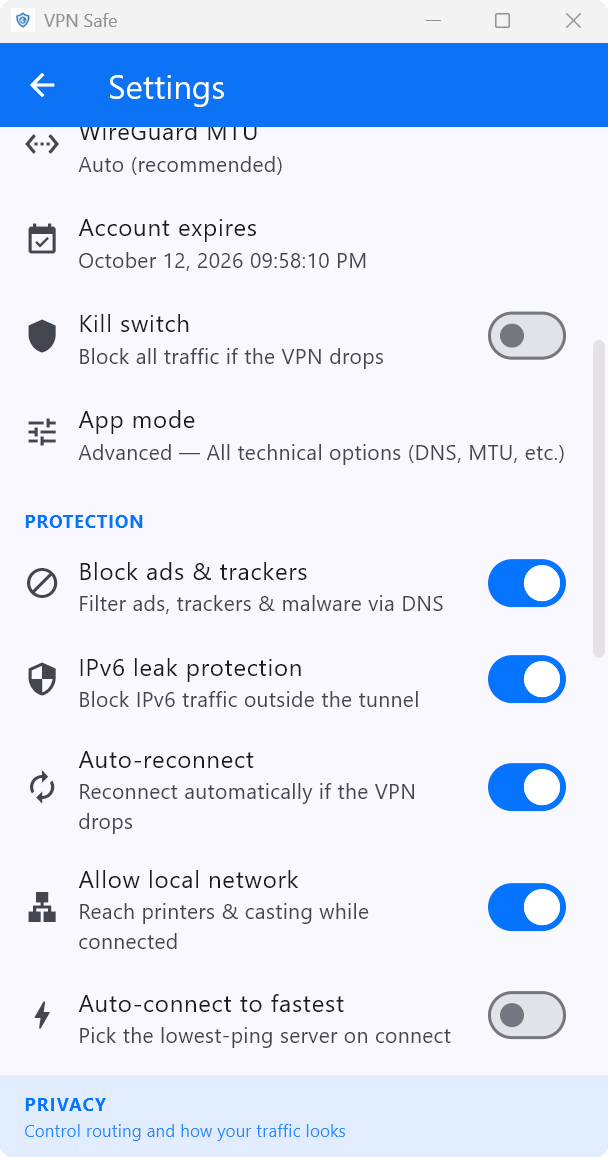
What each switch does
- Kill switch — Block all traffic if the VPN drops. Covered in Enabling the Kill Switch in the Windows App.
- Block ads & trackers — Filter ads, trackers and malware via DNS. Leave this on unless a site breaks.
- IPv6 leak protection — Block IPv6 traffic outside the tunnel. Leave this on. IPv6 is a common leak path if the VPN is IPv4-only.
- Auto-reconnect — Reconnect automatically if the VPN drops. Use this with the kill switch so you are blocked briefly, then back on the tunnel.
- Allow local network — Reach printers and casting while connected. Turn this on if Chromecast, a NAS, or a printer stops working with the VPN up. Turn it off on untrusted Wi-Fi if you do not need LAN.
- Auto-connect to fastest — Pick the lowest-ping server on connect. Off by default so you stay on the city you chose.
Recommended baseline
For everyday use: kill switch on, ads/trackers on, IPv6 leak protection on, auto-reconnect on. Turn Allow local network on only at home. Leave Auto-connect to fastest off if you care about a specific country (streaming, banking, or a static-feeling IP).