Introduction
Chromecast with Google TV, Google TV Streamer, Sony/TCL Google TV sets, NVIDIA Shield, and other Android TV boxes use vpnsafe.net/downloads/androidtv.apk. Firestick users should follow the Firestick Downloader article instead.
Sideload the APK
- On the TV, open Chrome (or the TV browser) and go to vpnsafe.net/downloads/androidtv.apk. Let the APK finish downloading. Android TV blocks the install until that app is allowed to install from outside the Play Store.
- Allow external app sources for the browser or Files app you used:
- Open Settings → Apps → Special app access → Install unknown apps. On some Google TV devices this is Settings → Privacy → Special app access, or Settings → Security & restrictions → Unknown sources.
- Select that browser or Files app.
- Turn on Allow from this source.
- Go back to the download, open the APK, tap Install, and confirm when the TV asks to install VPN Safe.
- Launch it, sign in with your VPN username and password, and accept the VPN connection request.
You can also download the APK on a PC, copy it to a USB stick, and install with a file manager on the box (Shield and many dongles allow this).
First connect
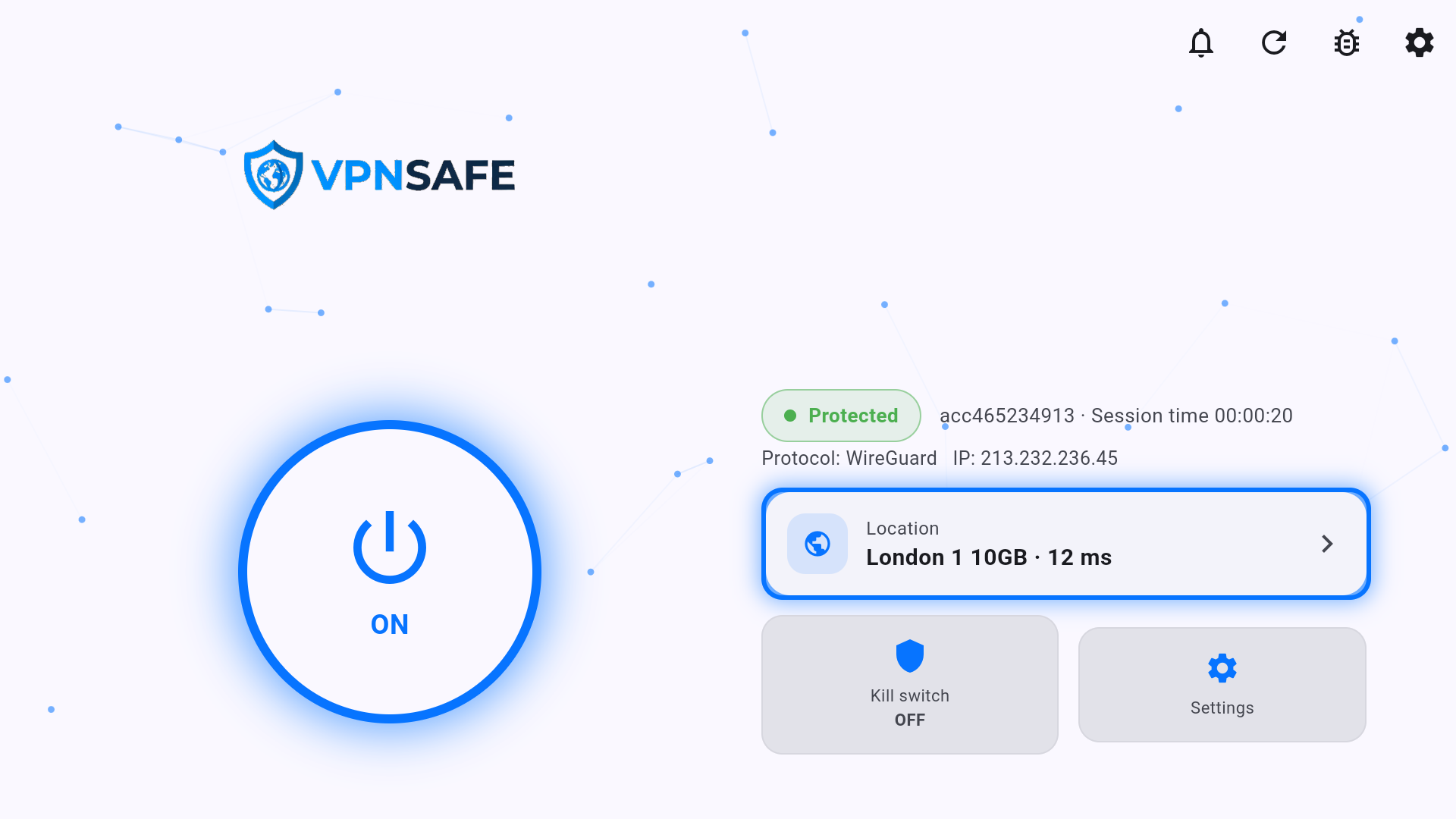
- Press the power button to ON.
- Confirm Protected and a VPN IP.
- Add VPN Safe to the Google TV home row so you connect before opening Netflix or YouTube.
The Stick/Cube Downloader code 9802820 is for Fire TV. On Google TV use the APK link above.