
Introduction
Step-by-step import for OpenVPN Connect on Windows using the VPN Safe zip packs. Each .ovpn file is one city. Login is your VPN Safe username and password, not the Windows account.
OpenVPN Connect: openvpn.net/client
UDP (faster): vpnsafe.net/downloads/openvpn-udp.zip
TCP (strict networks): vpnsafe.net/downloads/openvpn-tcp.zip
Import
- Install OpenVPN Connect and open it.
- Download and unzip
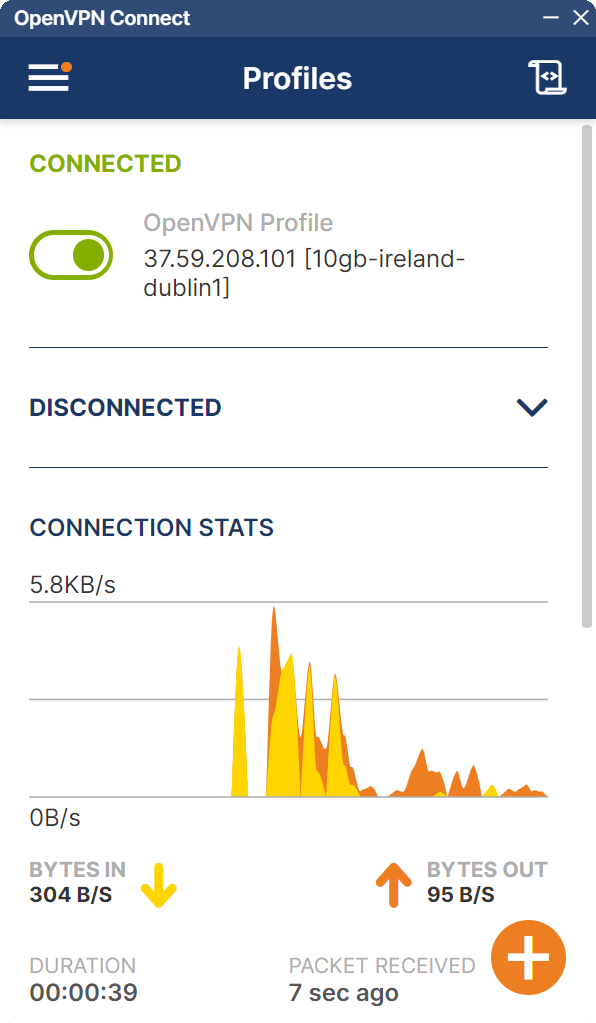
openvpn-udp.zip(start with UDP). - In Connect, click the orange + (or the import icon in the header).
- Choose File and select a city file, for example
10gb-ireland-dublin1.ovpnorbelgium-malinois1.ovpn. - When asked for credentials, enter your VPN Safe username (example
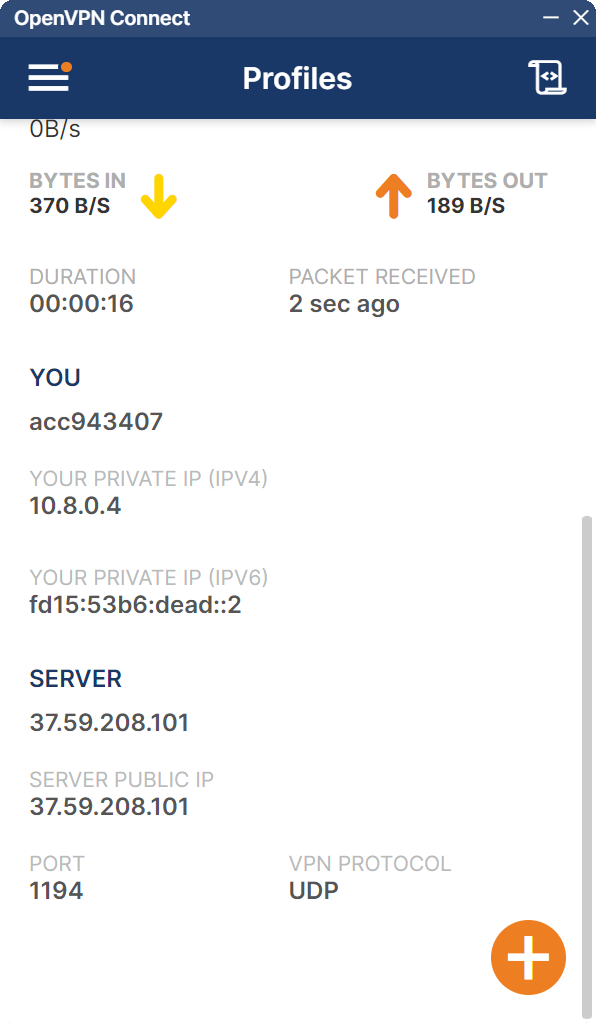
acc943407) and password. Save them in the profile if you want one-click connect later.
Connect
- On the Profiles list, toggle the profile on. Status turns green CONNECTED.
- Connection stats show bytes in/out and duration.
- Open the profile for private IPv4 (example 10.8.0.4), server public IP, port 1194, and UDP or TCP.
- Visit vpnsafe.net/whats-my-ip — it should match SERVER PUBLIC IP.
If UDP will not connect, import the same city from openvpn-tcp.zip instead of forcing TCP on a UDP file. For a kill switch in this app, enable Seamless Tunnel in Settings.